
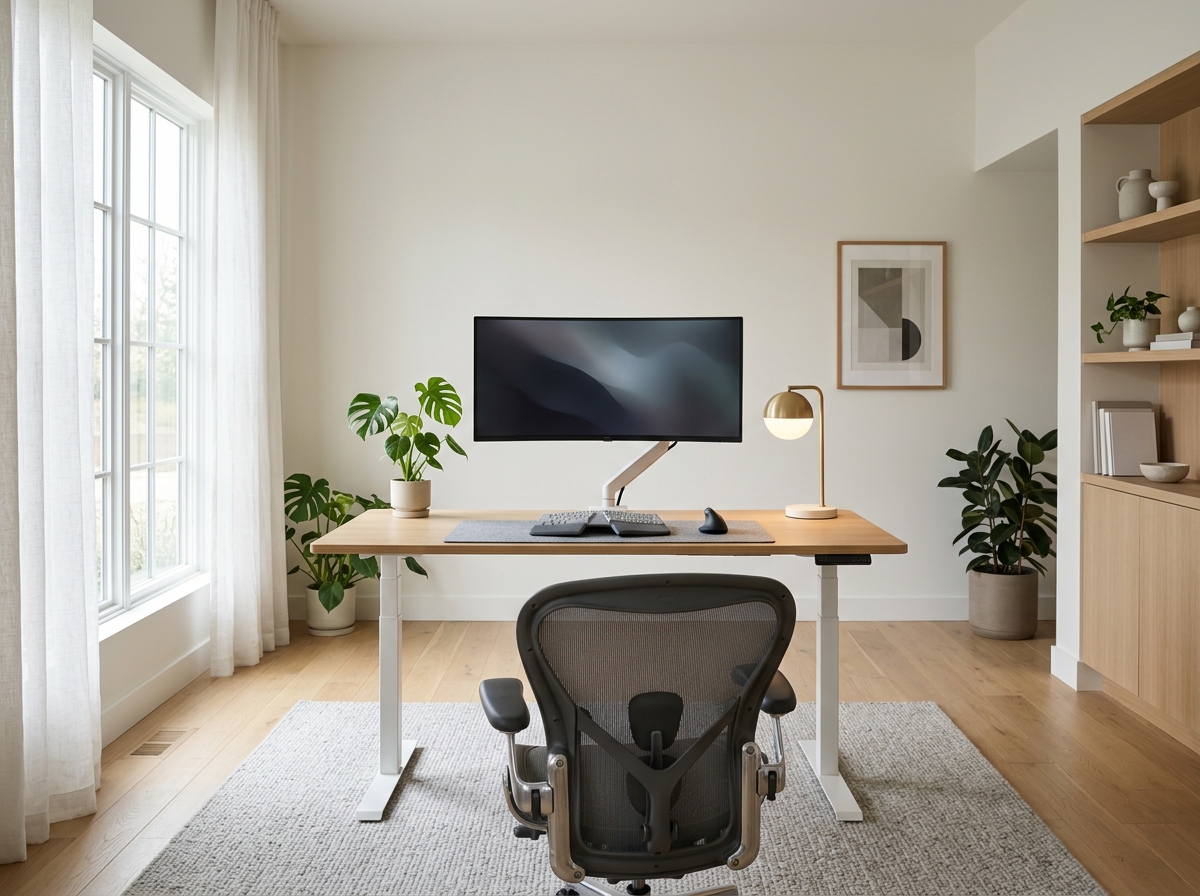
Your kitchen table never claimed to be an office. It was built for dinner, not for eight hours of typing, and your back, neck, and wrists notice the difference by Wednesday. Remote work moved millions of people onto improvised setups, and many of those setups quietly drain energy, focus, and comfort.
The good news: you can fix most ergonomic problems without a luxury budget. Small changes to chair height, screen position, and lighting often deliver the biggest relief. This guide shows remote employees how to build a comfortable, productive workstation step by step, and it gives employers a practical way to support their teams. You’ll find target measurements, equipment priorities, and a simple movement routine that keeps stiffness away.
Why Ergonomics Matters for Business, Not Just Comfort
Poor workstation setup shows up as neck and shoulder tension, lower back pain, wrist discomfort, headaches, and tired eyes. Those problems drain attention, slow work, and in some cases lead to time off. Repetitive strain injuries tend to develop gradually, which means people often ignore early signs until the pain becomes hard to dismiss.
For employers, ergonomics connects directly to productivity and retention. A team that works comfortably makes fewer mistakes, takes fewer sick days, and tends to stay longer. OSHA has no single ergonomics standard that covers every workplace, and it has said it does not inspect home offices. Even so, employers may face workers’ compensation questions when a remote employee develops a work-related injury, and state rules vary. Supporting a good setup costs far less than managing a claim. This article offers general guidance, not medical advice. Anyone with persistent pain should see a healthcare professional.
Start with the Chair
Your chair does more work than any other piece of equipment, so spend here first. Look for these features:
- Adjustable seat height, so your feet rest flat on the floor and your knees bend at roughly a right angle
- Lumbar support that fits the natural curve of your lower back
- Adjustable armrests that let your shoulders relax while your elbows stay close to your body
- Seat depth that leaves a couple of fingers’ width between the seat edge and the back of your knees
- A breathable cushion you can sit on comfortably for long stretches
If you can’t afford a premium chair, a modest model with real adjustability beats an expensive one that doesn’t fit you. A small footrest helps if your feet dangle after you raise the seat to match your desk.
Choose and Position the Desk
A standard desk sits around 29 to 30 inches high, which suits many people but not everyone. Your goal is to keep your elbows at about 90 to 110 degrees with your forearms parallel to the floor while you type. If your desk sits too high, raise your chair and add a footrest. If it sits too low, a riser can help.
Sit-stand desks let you alternate postures. They help, but they don’t cure everything. Standing all day creates its own strain, so alternate between sitting and standing every 30 to 60 minutes instead of treating the desk as a magic fix. A budget alternative is a desktop converter that rests on your existing surface.
Set the Monitor Right
Monitor placement drives neck comfort. Follow these targets:
- Put the top of the screen at or slightly below eye level.
- Sit about an arm’s length from the display, roughly 20 to 30 inches depending on screen size and your eyesight.
- Tilt the screen slightly back and place it directly in front of you, not off to one side.
- If you use two monitors, put the main one in front of you and the second at an angle beside it. If you use them equally, center the pair where they meet.
Laptops pose a special challenge, because the screen and keyboard share one height. Raise the laptop on a stand and add an external keyboard and mouse. That single change fixes a huge share of remote-worker neck pain.
Keyboard, Mouse, and Wrist Position
Keep your keyboard and mouse close enough that your upper arms stay relaxed at your sides. Your wrists should stay straight, not bent up or down. A keyboard tray or a lower desk surface can help if your desk is too high. Choose a mouse that fits your hand, and consider a vertical or trackball model if you notice wrist or forearm strain. Keep frequently used items within easy reach so you don’t twist or stretch all day.
Fix Your Lighting
Bad lighting causes eye strain and headaches. Position your screen so windows sit to the side, not directly behind or in front of it, because both create glare. Add an adjustable task lamp for paperwork and for evening hours, and choose a lamp that puts light on your desk without shining into your screen. Warmer, softer light suits evenings, while cooler, brighter light suits daytime focus. The 20-20-20 rule helps your eyes recover: every 20 minutes, look at something 20 feet away for at least 20 seconds. Reviews of desk and floor lamps at https://mechoffice.com/ can help you find a lamp that suits small spaces.
Quick Setup Reference
| Body area | Target position |
| Feet | Flat on the floor or on a footrest |
| Knees | Bent at roughly 90 degrees, level with or slightly below hips |
| Lower back | Supported by the chair’s lumbar curve |
| Elbows | Close to the body at roughly 90 to 110 degrees |
| Wrists | Straight and relaxed |
| Eyes | Level with the top third of the screen |
| Screen distance | About an arm’s length |
Power, Cables, and Safety
A comfortable desk is also a safe one. Route cables away from walkways so nobody trips, and plug equipment into a quality surge protector with the correct rating instead of daisy-chaining cheap extension cords. Check that outlets and strips aren’t overloaded, particularly when you run a monitor, laptop dock, printer, and lamp from the same spot. Keep floors clear and make sure you can reach your phone without twisting.
Build Movement into the Day
The best chair in the world can’t rescue a body that never moves. Set simple habits:
- Stand up and stretch at least once an hour.
- Take a short walk after meetings or phone calls.
- Roll your shoulders and stretch your neck and wrists between tasks.
- Alternate between sitting and standing if your desk allows it.
- Drink water, which gives you a built-in reason to get up.
Brief, frequent breaks work better than one long break. Treat movement as part of the job, not a distraction from it.
How Employers Can Support Remote Ergonomics
Managers can make a measurable difference with a few low-cost steps. Offer a home office stipend or an approved equipment list so employees can buy a proper chair, monitor stand, or keyboard. Share a short ergonomic checklist during onboarding and invite employees to send a photo of their setup for friendly feedback. Encourage breaks and avoid back-to-back meetings that keep people locked in position. Finally, tell employees how to report discomfort early, before small issues become injuries.
Business owners who want to understand how workplace investments affect overhead and operations can find helpful reading at //unixtrades.com/, and those who track company spending alongside personal investing may also enjoy //studyofstocks.com/ for more reading.
Frequently Asked Questions
What is the most important item in an ergonomic home office? The chair usually matters most, followed by monitor height and keyboard position. If budget is tight, spend on an adjustable chair and a laptop stand with an external keyboard.
How high should my monitor be? Place the top of the screen at or slightly below eye level, about an arm’s length from your face. Tilt it back slightly to reduce glare.
Do I need a standing desk? Not necessarily. A standing desk adds flexibility, but regular movement matters more than the desk itself. A desktop converter or simple breaks every hour can deliver similar benefits.
Should employers pay for home office equipment? Many employers do, through stipends or reimbursement, because it supports productivity and reduces injury risk. Requirements vary by location, so check your local rules and company policy.
How can I reduce eye strain while working from home? Position your screen away from direct window glare, use a task lamp, keep text at a comfortable size, and follow the 20-20-20 rule. If symptoms continue, see an eye care professional.
Conclusion
An ergonomic workstation doesn’t require a showroom budget. It requires attention to a few basics: a supportive chair, a properly placed monitor, a keyboard and mouse that keep your wrists straight, good lighting, and regular movement. Small changes compound, and your body will thank you within days.
Ready to upgrade your setup? Spend ten minutes today measuring your chair, desk, and screen against the table above, and fix the biggest gap first. Then browse office furniture and lighting reviews at MechOffice.com to find affordable upgrades that fit your space.